Web Page Design & Forms
Every website you visit is built using HTML for structure and CSS for styling. In this lesson, we will explore where HTML came from, how a page is structured from the inside out, and how to collect user data using HTML forms.
Learning Objectives
- 11.5.3.1 Identify common elements of a web page structure
- 11.5.3.2 Create an interface using HTML and CSS
- 11.5.3.4 Create HTML forms for data entry
Conceptual Anchor
The House Construction Analogy
Building a webpage is like building a house:
- HTML (HyperText Markup Language) provides the skeleton and structure (walls, floors, rooms).
- CSS (Cascading Style Sheets) provides the interior design (paint colour, wallpaper, furniture arrangement).
- HTML Forms are the letterboxes and intercoms that allow visitors to send information back to the house owner.
Foundations: What Exactly Is a Markup Language?
HTML stands for HyperText Markup Language. A markup language is a computer language that describes the structure and presentation of raw text using tags — it does not perform calculations or logic like a programming language (e.g. Python); it simply labels content so a browser knows how to display it.
Hypertext is text displayed on a screen that contains links (hyperlinks) to other text or pages, allowing non-linear navigation between documents — this is the "H" in HTML and the foundation of the World Wide Web.
A Very Short History
- 1990 — HTML created by Tim Berners-Lee at CERN, based on an older markup standard called SGML.
- 1997–1999 — HTML 4.01 becomes a widely supported W3C standard.
- 2000s — XHTML attempts a stricter, XML-based version of HTML.
- 2014 — HTML5 is finalised, adding semantic tags (
<header>,<nav>,<video>, etc.) and is the current standard used today.
Tags vs. Attributes
A tag names an element and is written inside angle brackets, e.g. <p>. Most tags come in pairs — an opening tag and a closing tag with a forward slash, e.g. <p>...</p>. A few tags are "empty" and never need a closing tag, such as <br>, <hr>, and <img>.
An attribute gives extra information about an element and is written inside the opening tag as name="value", e.g. in <img src="cat.jpg" alt="A cat">, src and alt are attributes.
You can also add a comment to your code that the browser will ignore — useful for leaving notes for yourself: <!-- this is a comment -->
Rules & Theory
Semantic Web Page Structure
Modern HTML5 uses semantic tags. This means the tags clearly describe their meaning to both the browser and the developer, making the site structure logical and accessible.
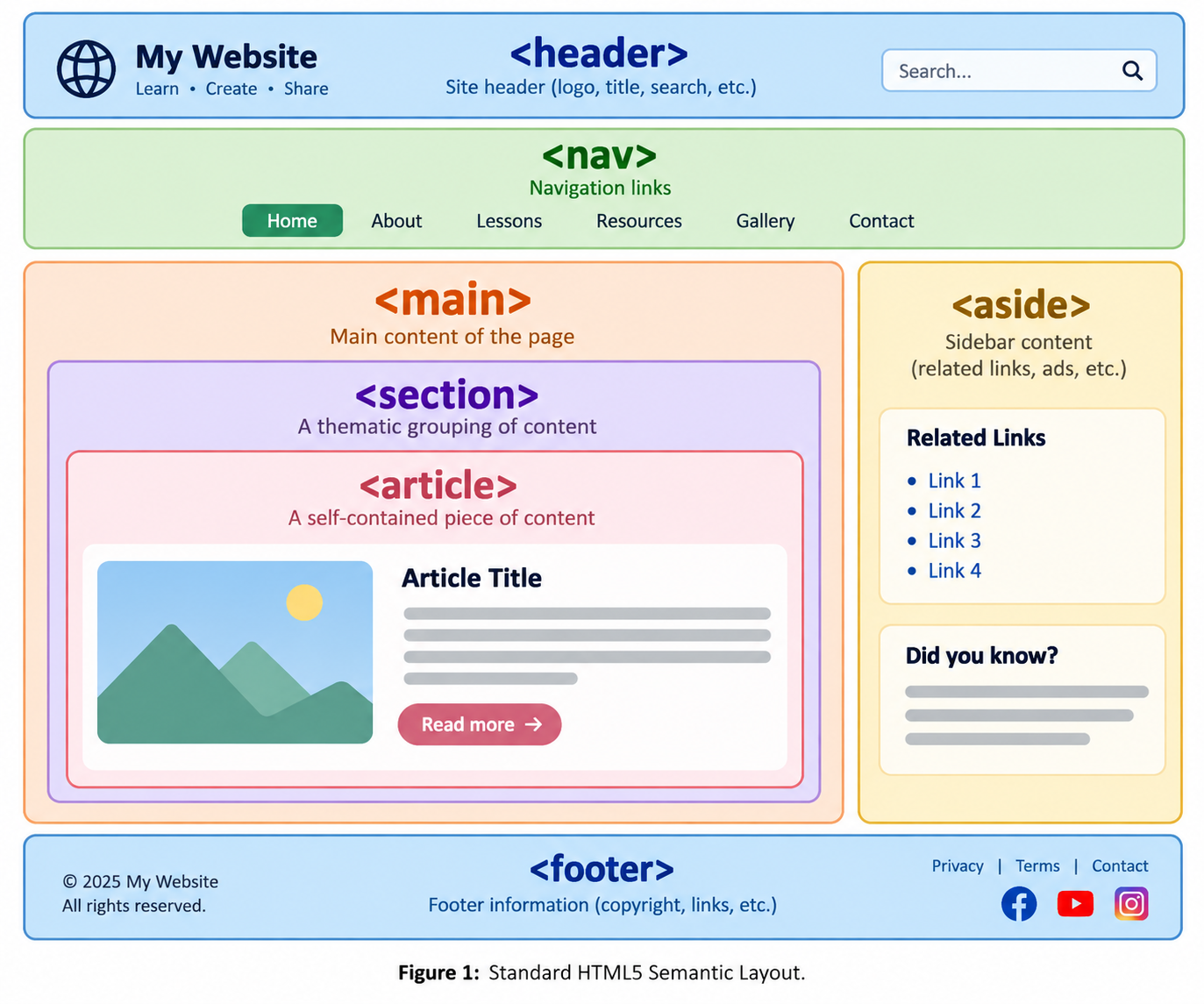
| Semantic Tag | Purpose |
|---|---|
<header> |
Contains introductory content, site logo, or main headings. |
<nav> |
Contains the main navigation links (menus) for the website. |
<main> |
Specifies the dominant content of the document. Unique to each page. |
<section> |
A thematic grouping of content, typically with a heading. |
<aside> |
Content tangentially related to the main content (e.g., a sidebar). |
<footer> |
Contains copyright information, author details, or secondary links. |
Inside the <head> Element
The <head> section never displays content in the browser window — instead it carries metadata (data about the page) that browsers and search engines use behind the scenes.
| Tag inside <head> | Purpose |
|---|---|
<title> |
Text shown in the browser tab / title bar. Every HTML page must have exactly one. |
<meta charset="UTF-8"> |
Declares the character encoding so text (including non-English letters) displays correctly. |
<meta name="description" content="..."> |
A short summary of the page, often shown in search engine results. |
<link rel="stylesheet" href="..."> |
Connects an external CSS file to style the page. |
<script> |
Embeds or links JavaScript code (can also appear at the end of <body>). |
A A Complete <head> Example
<head>
    <meta charset="UTF-8">
    <title>My Portfolio</title>
    <meta name="description" content="A student portfolio website.">
    <link rel="stylesheet" href="styles.css">
</head>
Essential Content Tags
| Tag Category | Tags and Description |
|---|---|
| Text Formatting | <h1> to <h6> (Headings), <p> (Paragraph), <br> (Line break), <hr> (Horizontal rule). |
| Lists | <ul> (Unordered bullet list), <ol> (Ordered numbered list), <li> (List item). |
| Media & Links | <img src="..." alt="..."> (Image), <a href="..."> (Hyperlink). |
| Tables | <table> (Container), <tr> (Row), <th> (Header cell), <td> (Standard data cell). |
Text Formatting & Emphasis
HTML5 draws a line between presentation (how text looks) and semantics (what text means). Where possible, prefer the semantic tag — CSS should handle pure appearance.
| Tag | Effect / Meaning |
|---|---|
<strong> |
Marks text as important — renders bold. Preferred over <b>, which is purely visual. |
<em> |
Marks text as emphasised — renders italic. Preferred over <i>, which is purely visual. |
<u> |
Underlines text. Use sparingly — underlined text is usually expected to be a link. |
<mark> |
Highlights text with a yellow background, like a highlighter pen. |
<small> |
Renders text at a smaller font size — often used for fine print. |
<del> / <ins> |
Shows edited content: <del> strikes through removed text, <ins> underlines newly added text. |
<sub> / <sup> |
Subscript (below the line, e.g. H2O) and superscript (above the line, e.g. footnotes1). |
<font color="..." size="..."> |
Deprecated in HTML5. Colour and size should be set with CSS instead (e.g. style="color:red;"). |
B All the Formatting Tags Together
<p><strong>Important:</strong> the exam is <mark>next Monday</mark>.</p>
<p>The formula for water is H<sub>2</sub>O.</p>
<p>My favourite colour is <del>blue</del> <ins>red</ins>.</p>
<p><small>Terms and conditions apply.</small></p>Important: the exam is next Monday.
The formula for water is H2O.
My favourite colour is blue red.
Terms and conditions apply.
Hyperlinks
The anchor tag <a> creates a clickable hyperlink. Its most important attribute is href, which points to the destination.
| Example | What it does |
|---|---|
<a href="about.html">About</a> |
Links to another page on the same website (a relative path). |
<a href="https://nis.edu.kz">NIS</a> |
Links to an external website (an absolute path). |
<a href="mailto:teacher@school.kz">Email us</a> |
Opens the visitor's default email client with the address pre-filled. |
<a href="..." target="_blank"> |
Opens the link in a new browser tab. Other values: _self (default, same tab), _parent, _top (used with frames). |
<a href="..." title="..."> |
Adds a tooltip that appears when the mouse hovers over the link. |
<a href="..."><img src="..." alt="..."></a> |
Turns an image into a clickable link by placing <img> inside <a>. |
C Links in Action
<a href="https://www.cambridgeinternational.org/" target="_blank" title="Opens in a new tab">Visit Cambridge International</a><br>
<a href="mailto:teacher@school.kz">Send an email</a>Images in Detail
The <img> tag is an empty element (no closing tag) that always needs a src attribute.
| Attribute | Purpose |
|---|---|
src |
The file path or URL of the image — required. |
alt |
Alternative text shown if the image fails to load, and read aloud by screen readers — required for accessibility. |
width / height |
Sets the display size in pixels. Always set these to stop the page flickering while the image loads. |
style="width:...;height:..." |
An alternative way to size an image with CSS — many developers prefer this because it can't be overridden accidentally by other width/height attributes. |
style="float:left;" / float:right; |
Makes surrounding text wrap around the image, like in a newspaper. |
Common image formats you should recognise:
| Format | Extension | Typical use |
|---|---|---|
| JPEG | .jpg, .jpeg | Photographs (small file size, no transparency). |
| PNG | .png | Graphics/logos needing transparency. |
| GIF | .gif | Simple animations. |
| SVG | .svg | Vector icons/logos that scale without losing quality. |
If an image sits inside a sub-folder, include the folder name in src, e.g. <img src="/images/logo.png" alt="Logo">.
D Sizing and Floating an Image
<img src="icon.svg" alt="Warning icon" style="width:60px;height:60px;float:left;margin-right:10px;">
<p>Text will wrap neatly around an image that floats to the left, which is useful for magazine-style layouts.</p>
Text will wrap neatly around an image that floats to the left, which is useful for magazine-style layouts.
Tables in Detail
Beyond the basic <table>/<tr>/<td>, a few extra tags make tables more structured and accessible:
| Tag | Purpose |
|---|---|
<caption> | Adds a title/caption above the table, describing what it shows. |
<thead> | Groups the header row(s) of a table. |
<tbody> | Groups the main data rows of a table. |
<tfoot> | Groups footer rows, e.g. totals at the bottom. |
E A Fully Structured Table
<table>
    <caption>Grade 11 Elective Choices</caption>
    <thead>
        <tr><th>Student</th><th>Elective</th></tr>
    </thead>
    <tbody>
        <tr><td>Aisulu</td><td>Computer Science</td></tr>
        <tr><td>Nurlan</td><td>Physics</td></tr>
    </tbody>
</table>| Student | Elective |
|---|---|
| Aisulu | Computer Science |
| Nurlan | Physics |
HTML Forms for Data Entry
Forms are used to collect user input. The <form> element is a container for different types of input elements, such as text fields, checkboxes, radio buttons, and submit buttons.
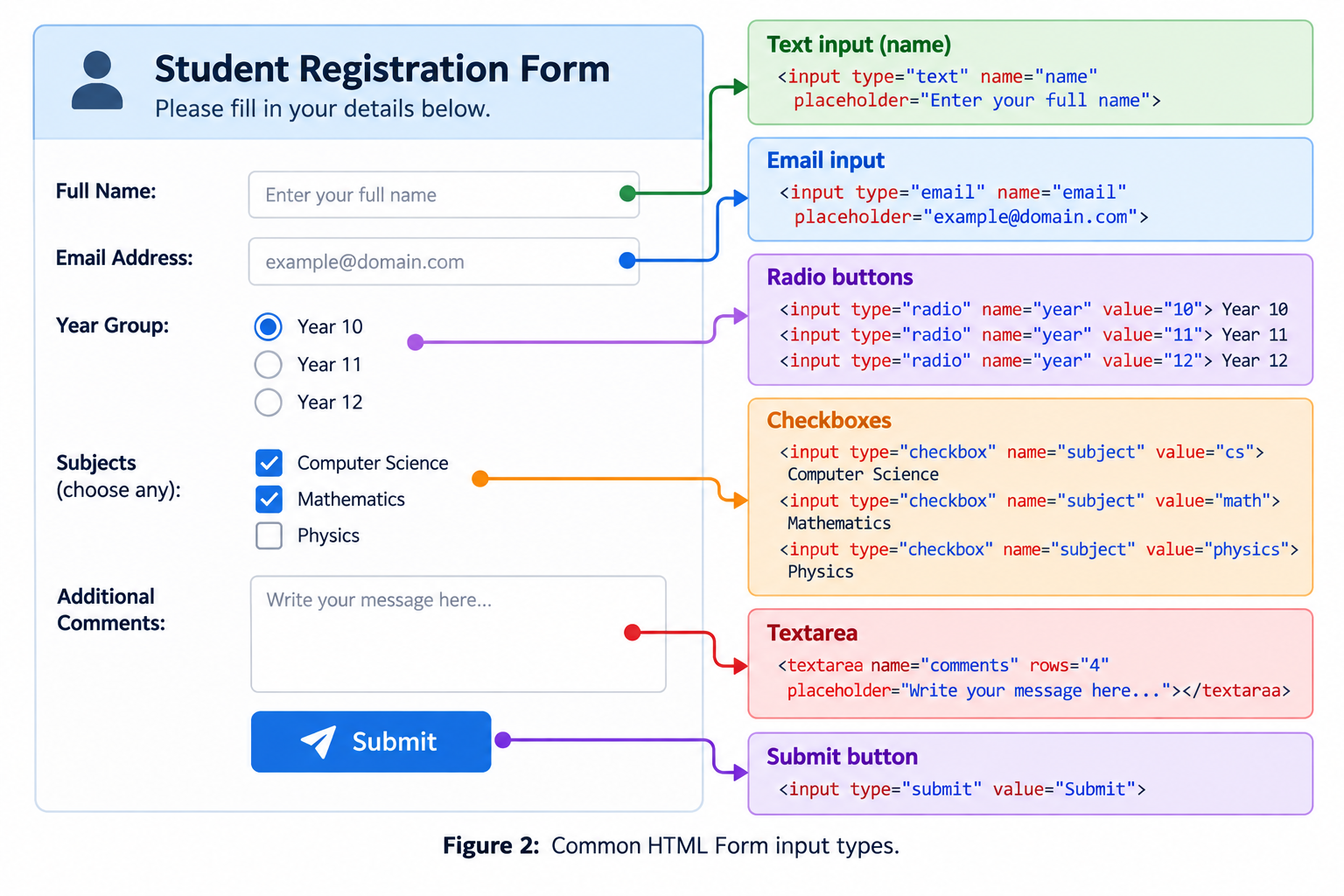
| Form Element | Description |
|---|---|
<form action="..." method="..."> |
Wraps all input elements. action defines where to send the data. method defines how to send it (GET or POST). |
<label for="..."> |
Defines a clickable label for an input element, improving accessibility. |
<input type="text"> |
A single-line text input field (e.g., for First Name). |
<input type="password"> |
A single-line text field that masks characters as dots — used for passwords. |
<input type="radio"> |
A radio button. Allows a user to select ONLY ONE option from a group (e.g., Language). |
<input type="checkbox"> |
A checkbox. Allows a user to select ZERO or MORE options. |
<textarea></textarea> |
A multi-line text box, e.g. for comments or messages. |
<select><option>...</option></select> |
A drop-down list; each <option> is one choice. |
placeholder="..." |
Grey hint text shown inside an empty input before the user types. |
required |
Prevents the form from submitting until this field is filled in. |
<fieldset><legend>...</legend></fieldset> |
Groups related form fields together under a shared caption. |
<input type="submit"> |
A button that submits the form data to the server. |
name attribute |
Every input needs a name to be submitted at all — without it, that field's value is silently ignored. |
Extra: Multimedia (Video & Audio)
Not part of the core assessment objectives for this unit, but useful for building richer interfaces and often appears in project-style tasks.
| Tag / Attribute | Purpose |
|---|---|
<video controls><source src="..." type="video/mp4"></video> | Embeds a video with play/pause/volume controls. |
<audio controls><source src="..." type="audio/mpeg"></audio> | Embeds an audio player. |
autoplay / muted / loop | Starts playback automatically (most browsers require muted for autoplay to work), and/or repeats playback. |
F Embedding a Video with a Fallback
<video width="320" height="240" controls>
    <source src="lesson-demo.mp4" type="video/mp4">
    <source src="lesson-demo.ogg" type="video/ogg">
    Your browser does not support the video tag.
</video>
No live preview here — the browser needs a real video file at that path to play anything; on your own site, point src to an uploaded video.
Worked Examples
1 Basic Document Skeleton
Every HTML file starts with a standard structure linking to a CSS file.
<!DOCTYPE html>
<html lang="en">
<head>
    <meta charset="UTF-8">
    <title>My First Interface</title>
    <link rel="stylesheet" href="styles.css"> <!-- Link to CSS -->
</head>
<body>
    <header>
        <h1>Welcome to My Website</h1>
    </header>
    <main>
        <p>This is the main content area.</p>
    </main>
</body>
</html>Welcome to My Website
This is the main content area.
2 Building a Registration Form
A simple form collecting a user's name and preferred language.
<form action="/submit_data" method="GET">
    <!-- Text Input -->
    <label for="fname">First name:</label><br>
    <input type="text" id="fname" name="fname"><br><br>

    <!-- Radio Buttons (must share the same 'name' attribute) -->
    <p>Select preferred language:</p>
    <input type="radio" id="eng" name="language" value="English">
    <label for="eng">English</label><br>

    <input type="radio" id="kz" name="language" value="Kazakh">
    <label for="kz">Kazakh</label><br><br>

    <!-- Submit Button -->
    <input type="submit" value="Register">
</form>3 A Feedback Form with Dropdown & Textarea
This example combines a drop-down list, a multi-line comment box, and a required field.
<form action="/feedback" method="POST">
    <fieldset>
        <legend>Lesson Feedback</legend>

        <label for="rating">How useful was this lesson?</label><br>
        <select id="rating" name="rating">
            <option value="5">Excellent</option>
            <option value="3">Average</option>
            <option value="1">Needs work</option>
        </select><br><br>

        <label for="comments">Comments:</label><br>
        <textarea id="comments" name="comments" rows="4" cols="30" placeholder="Type here..." required></textarea><br><br>

        <input type="submit" value="Send Feedback">
    </fieldset>
</form>Common Pitfalls
Using Deprecated Formatting Tags
Tags like <font>, <center>, <strike>, and <big> are deprecated in HTML5. Modern web design strictly separates structure from styling. You should use HTML for structure and CSS for styling (colours, sizes, alignment).
Forgetting to link Radio Buttons
If you create two radio buttons but give them different name="..." attributes, the user will be able to select both of them at the same time! To group radio buttons together so only one can be clicked, they must share the exact same name.
Missing the alt Attribute
Every <img> tag should include an alt attribute. Without it, screen readers cannot describe the image to visually impaired users, and visitors see nothing useful if the image fails to load.
Confusing GET and POST
method="GET" appends form data visibly to the URL — fine for searches, but not for sensitive data. method="POST" sends data invisibly in the request body — always use POST for passwords or personal information.
Incorrect Tag Nesting
Tags must close in the reverse order they were opened. <p><strong>text</p></strong> is invalid; it should be <p><strong>text</strong></p>.
Forgetting an Input's name Attribute
If an <input> has no name, its value is not submitted at all when the form is sent — the field is effectively invisible to the server.
Tasks
Task 1: Create a Store Catalog
Instructions: Open a code editor (or online compiler). Create an index.html file. Use the <table> tag to create a product list for an electronics store. The table must have 3 columns: Product Name, Description, and Price. Add at least 3 rows of data.
Task 2: The Search Engine Form
Instructions: Create a web page containing a form that submits data using the GET method. The form must include:
- A text input field for a search query.
- Three radio buttons allowing the user to select the search language (English, Kazakh, Russian).
- A submit button labeled "Search".
Task 3: Find the Difference
Instructions: Briefly explain the visual and structural difference between using the <p> tag and using the <br> tag when separating lines of text on a web page.
Task 4: Class Survey Form
Instructions: Build a form that collects a student's name (text), favourite subject (drop-down <select> with at least 4 subjects), and an open comment (<textarea>). Make the name field required. Submit using POST.
Task 5: Find the Three Errors
Instructions: The code below contains three mistakes. Identify and correct them.
<html>
<head>
    <title>My Page</title>
</head>
<body>
    <h1>Welcome</h2>
    <img src="dog.jpg">
</body>Task 6: Plan a Semantic Homepage
Instructions: A local bakery wants a one-page website with a logo, a navigation menu, a welcome message, a menu of products, a customer testimonial sidebar, and contact details at the bottom. Sketch which semantic tag (<header>, <nav>, <main>, <section>, <aside>, <footer>) you would use for each part, and explain your choices.
Task 7: A Fully Structured Timetable
Instructions: Build a weekly timetable using <table>. Include a <caption> describing the table, group the day names in a <thead>, and put the lesson rows inside a <tbody>.
Task 8: A Clickable Image Gallery Link
Instructions: Create a small thumbnail image that, when clicked, opens a full-size version of the same image in a new browser tab. Add a title attribute with a short tooltip description.
Self-Check Quiz
Q1: What is the purpose of the <nav> tag in HTML5?
Q2: If you want a user to select multiple hobbies from a list (e.g., Reading, Coding, Sports), which input type should you use?
<input type="checkbox">, because checkboxes allow zero, one, or multiple selections, whereas radio buttons allow only one.Q3: How do you link an external CSS file to an HTML document?
<link rel="stylesheet" href="styles.css">.Q4: What is the difference between method="GET" and method="POST" on a form?
Q5: Why should <strong> generally be used instead of <b>?
<strong> conveys semantic importance (meaning) as well as bold styling, while <b> only affects visual appearance with no meaning attached.Q6: A student writes <img src="photo.jpg"> with no other attributes. What important attribute is missing, and why does it matter?
alt attribute is missing. It provides alternative text for screen readers and for when the image fails to load — important for accessibility.Q7: Which form element would you use to let a user pick exactly one option from a drop-down list of 10 countries?
<select> with multiple <option> elements — it's more compact than 10 radio buttons for a long list of choices.Q8: What does the required attribute do on a form field?
Q9: Which tag would you use to show a chemical formula like H2O correctly?
<sub> (subscript), to place the "2" slightly below the normal line.Q10: What does target="_blank" do on a hyperlink?
Q11: Why might a developer group table rows inside <thead> and <tbody> instead of leaving them as plain <tr> rows?